
Maintenance message
The maintenance_file allows you to add a message to the auto reconnect screen.
This might be useful if you want to let a user know that Kiosk is down intensionaly.
Lets walk through the steps needed to add a message:
1. Make sure you mount a config directory (if using Docker)
Section titled “1. Make sure you mount a config directory (if using Docker)”Below is an example compose file that mounts ./config into the container at the location /config.
services: immich-kiosk: image: ghcr.io/damongolding/immich-kiosk:latest container_name: immich-kiosk environment: LANG: "en_GB" TZ: "Europe/London" ports: - 3000:3000 volumes: - ./config:/config # 👆 we will add the maintenance file to this mounted directory restart: always healthcheck: test: ["CMD", "/kiosk", "--healthcheck"] interval: 30s timeout: 5s retries: 3 start_period: 10s2. Tell Kiosk where to look for the file
Section titled “2. Tell Kiosk where to look for the file”Here’s an example config.yaml file (which is also in ./config). With this, Kiosk will be watching for a file called MAINTENANCE inside of the config directory.
#  Excluded the rest of the config for brevity
kiosk:  maintenance_file: ./config/MAINTENANCE
3. (A) Create the file
Section titled “3. (A) Create the file”Lets create the file MAINTENANCE inside the config dir.
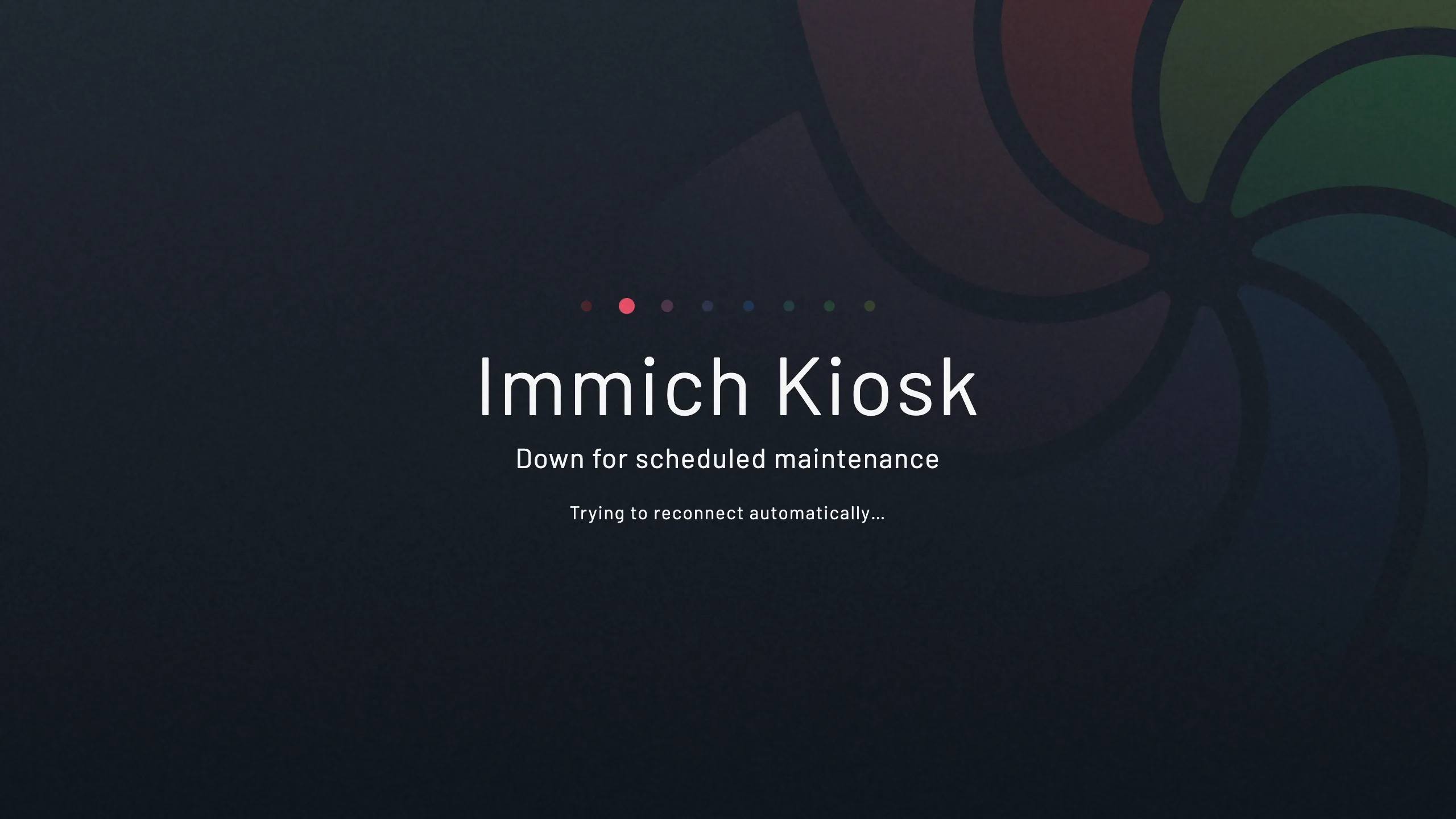
touch config/MAINTENANCENow when you stop Kiosk this is the screen the user will see.
3. (B) Create the file with a custom message
Section titled “3. (B) Create the file with a custom message”You can also add a custom message by adding it to the contents of the file.
echo "My custom message" > config/MAINTENANCE
4. Remove the file
Section titled “4. Remove the file”Remove the file when Kiosk is back up and running.
rm config/MAINTENANCE