You can interact with Kiosk in three ways: touch, mouse, or keyboard.
Kiosk’s display is divided into interactive zones:
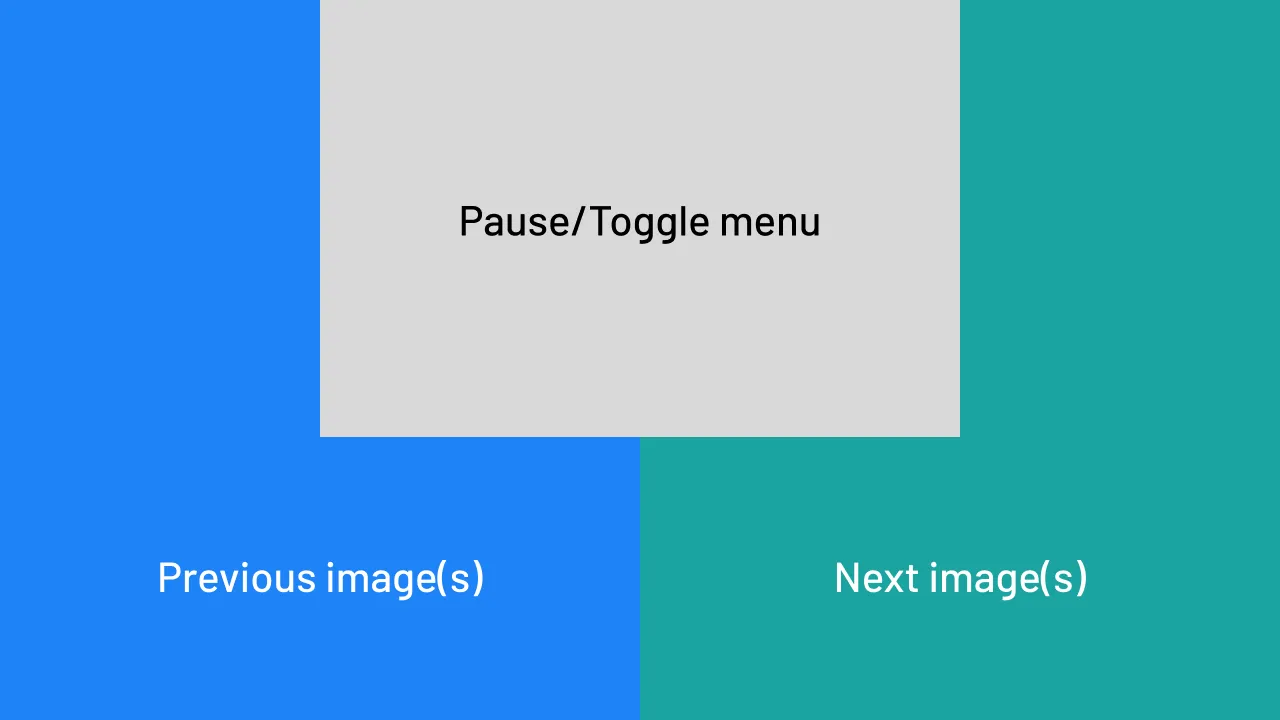
- Left Side: Previous image(s)
- Center top: Pause/Play and Toggle Menu
- Right Side: Next image(s)
| Key |
Action |
| _ Spacebar |
Play/Pause and Toggle Menu |
| → Right Arrow |
Next Image(s) |
| ← Left Arrow |
Previous Image(s) |
| i Key |
Play/Pause and Toggle Menu and display more info overlay |
| r Key |
Play/Pause and Toggle Menu and redirects info overlay |
| p Key |
Pause and Toggle Menu and redirects info overlay |
| shift+p Key |
Play and Toggle Menu and redirects info overlay |
| f Key |
Toggle Fullscreen |
Bind a custom action to the keyboard up arrow.
Options:
- “mute”
- “redirects”
- “pause”
- “more-info”
- “fullscreen”
Settings
| Key |
Value |
| CONFIG |
up_arrow_action
|
| ENV |
KIOSK_UP_ARROW_ACTION
|
| URL |
up_arrow_action
|
| VALUE |
string
|
| DEFAULT |
|
Using with config.yaml file
Using with ENV in your docker-compose file
Using with url queries
http://{URL}?up_arrow_action=
Bind a custom action to the keyboard down arrow.
Options:
- “mute”
- “redirects”
- “pause”
- “more-info”
- “fullscreen”
Settings
| Key |
Value |
| CONFIG |
down_arrow_action
|
| ENV |
KIOSK_DOWN_ARROW_ACTION
|
| URL |
down_arrow_action
|
| VALUE |
string
|
| DEFAULT |
|
Using with config.yaml file
Using with ENV in your docker-compose file
Using with url queries
http://{URL}?down_arrow_action=